

IPTV Buffering Explained and How to Avoid It 2026
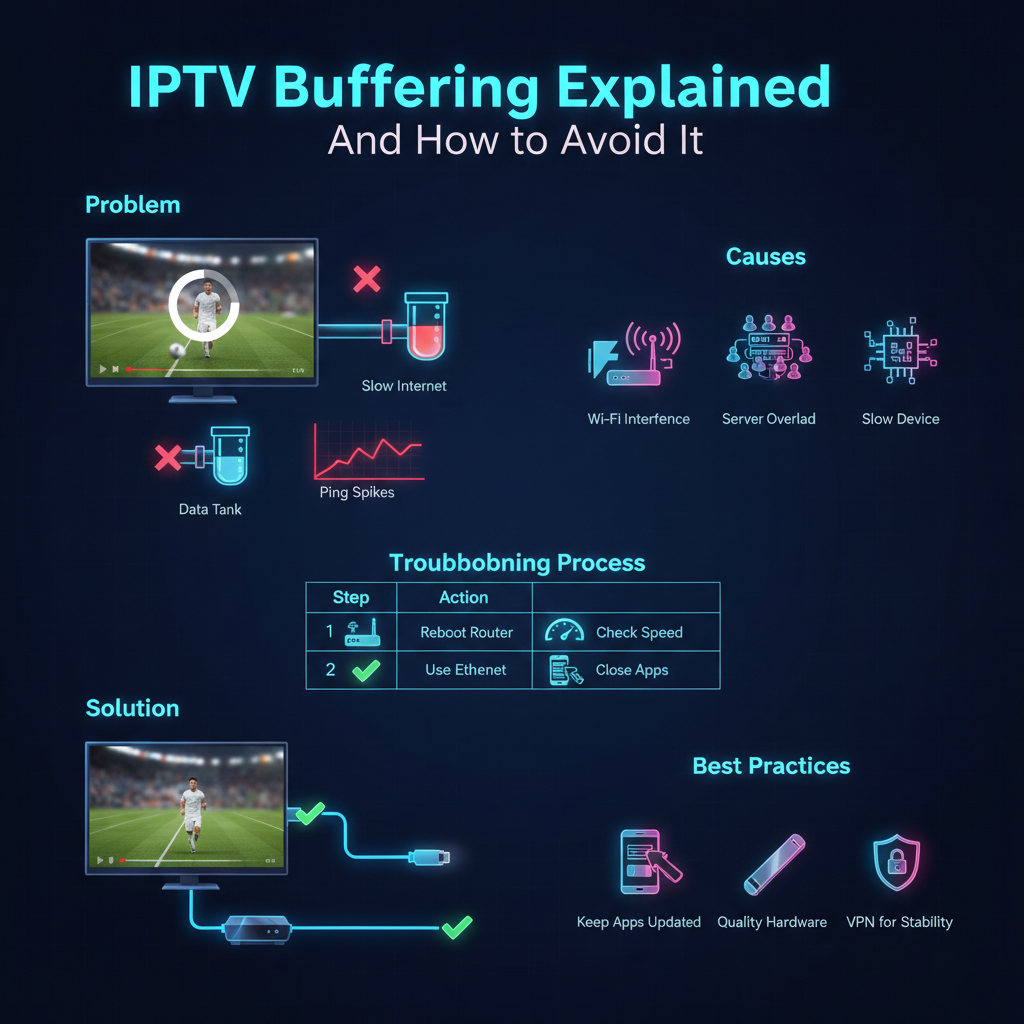
Iptv Buffering: Why Streams Freeze and How to Fix It
There is nothing more irritating than sitting down to watch a big game or a new movie, only for the screen to freeze. This loading circle is a common issue for people using internet-based TV. If you want to understand Iptv buffering and avoid these interruptions, you need to know how the technology works behind the curtain. While the internet gives great freedom for viewers, it also relies on a sequence of technical steps that all have to work flawlessly.
In this guide IPTV Buffering Explained, we will look at the reasons behind playback delays and offer simple solutions to fix them. It is important to note that this article is for educational purposes. We focus on software, management tools, and technical troubleshooting. We do not host, provide, or stream any video content ourselves. Our goal is to help you manage your digital tools more effectively.
What Is an IPTV Reseller Panel?
It is a professional software interface that allows an IPTV Panel Reseller to manage subscriber accounts, monitor server health, and organise content lists for their customers.
What Is Buffering, Exactly?
To understand how to fix the problem, we first need to define it. Buffering is the process in which your device pre-loads a certain amount of video data into its memory before playing it. Think of it like a water tank. The internet is the pipe filling the tank, and your TV is the tap letting the water out.
If the pipe (your internet) fills the tank slower than the tap (your TV) lets the water out, the tank runs dry. When this happens, the video stops so the tank can top up. That’s why you see a loading icon.
The Role of Data Packets
Video on the internet is broken into tiny pieces known as packets. These packets travel from a server to your home. If some packets get lost or arrive late, the “tank” runs out of data, and the picture freezes.
Common Causes of Playback Interruptions
There are several reasons why your stream might stop. These can range from issues in your own home to problems with the remote servers.
- Slow Internet Connection
This is the most frequent cause. If your internet speed is lower than the quality of the video you are trying to watch, you’ll experience lag. High-definition (HD) and 4K videos require a good deal of bandwidth.
- Wi-Fi Interference
Wi-Fi signals can be blocked by walls, furniture, or even other electronic devices like microwaves. If your streaming box is too far from the router, the connection becomes unstable.
- Server Overload
Sometimes the problem isn’t your house at all. If thousands of people are trying to watch the same live event on a single server, that server might struggle to keep up. This is common during major sports finals.
- Device Limitations
Older smart TVs or cheap streaming sticks often have slow processors. They may struggle to decode high-quality video files fast enough, causing the app to freeze or crash.
How to Check Your Connection Speed
Before you start changing settings, you need to find out if your internet is the culprit. You can run a speed test on your device to see your current “Mbps” (Megabits per second).
Speed Requirements Table
| Video quality | Recommended minimum speed |
|---|---|
| Standard definition (SD) | 5 Mbps |
| High definition (HD) | 10 Mbps |
| 4K Ultra HD | 25 Mbps |
| Multiple devices at home | 50+ Mbps |
Practical Ways to Fix and Avoid Buffering
Once you identify the cause, you can take steps to improve your viewing experience. Most of these solutions are free and take only a few minutes to set up.
Use a Wired Connection
The best way to ensure a stable stream is to stop using Wi-Fi. An Ethernet cable offers a direct, physical link between your router and your TV. This removes interference and provides the most consistent data flow.
Restart Your Equipment
It sounds simple, but restarting your router and your streaming device often fixes minor software bugs. It clears the temporary memory (cache) and forces the device to find a fresh connection.
Close Background Apps
If you have a computer, a gaming console, and several smartphones all using the internet at the same time, they’re all competing for the same “pipe.” Close apps that you aren’t using to free up bandwidth for your stream.
Use a VPN
Sometimes, internet providers deliberately slow down video traffic during busy hours. This is known as “throttling.” Using a Virtual Private Network (VPN) hides your activity from your provider, which can sometimes stop the throttling and offer a smoother stream.
Management Tools for Stability
For those who manage these systems professionally, there are advanced tools to help keep things running smoothly. An IPTV Reseller can use dedicated software to see if a server is getting too busy and move users to a more stable location.
If you’re looking for professional-grade management software, you can view the available plans on our Pricing Page. These tools are designed to help managers keep the viewing experience consistent for large groups of people.
Best Practices for a Seamless Experience
- Following a few simple guidelines will help you maintain a great setup over the long term.
- Keep Software Updated: App developers regularly release updates that improve how video is handled. Check for updates weekly.
- Choose Quality Hardware: Investing in a good streaming device, like a Firestick or Roku, is often better than using the built-in apps on a cheap TV.
- Check Your Router Placement: If you must use Wi-Fi, keep the router in an open location and as close to the TV as possible.
- Lower the Resolution: If you’re having a bad night with your internet, try switching from 4K to HD. The picture will still look great, but it will require far less data.
Comparing Home Network Options
Your network setup is the foundation of your TV experience. This table compares the two main ways to connect your devices.
Connection Type Comparison
| Feature | Wi-Fi (wireless) | Ethernet (wired) |
|---|---|---|
| Stability | Medium (affected by walls) | High (consistent) |
| Speed | Variable | Maximum |
| Setup ease | Very easy | Requires a cable |
| Best for | Mobile phones/tablets | Smart TVs/gaming consoles |
| Interference | Frequent | None |
Common Misconceptions About Buffering
There are many myths about why video freezes. It’s useful to know the facts so you don’t waste time on the wrong fixes.
“My internet speed is 100 Mbps, so it can’t be me”
Speed isn’t the same as stability. You may have a “fast” connection, but if it drops for even half a second (ping spikes), your video will stop. A speed test only shows a snapshot; it doesn’t show the ongoing health of the line.
“The app is broken”
Most of the time, the player app is just a window. If the data isn’t reaching the window, it can’t show anything. It’s rarely a bug in the app itself, and usually an issue with the network route.
“I need a brand new TV”
Unless your TV is over ten years old, the display is likely fine. The “smarts” inside the TV might be slow, but you can fix this by plugging in a $30 streaming stick instead of buying an entire new television.
The Workflow for Troubleshooting
When the screen freezes, follow this step-by-step process to find the fix quickly.
Troubleshooting Process Table
| Step | Action | Why it helps |
|---|---|---|
| 1 | Wait 30 seconds | Sometimes it’s just a tiny blip that fixes itself. |
| 2 | Restart the app | Clears the app’s internal memory. |
| 3 | Reboot router | Resets your home’s connection to the network. |
| 4 | Check other devices | Tells you if the whole house is slow or just one TV. |
| 5 | Switch to Ethernet | Rules out Wi-Fi interference. |
Frequently Asked Questions
Why does it always buffer during live sports?
Live sports are broadcast in real-time. Unlike a film on Netflix, the server cannot pre-load the entire game. Also, millions of people watch at once, which can weigh down even the best delivery networks.
Will a VPN make my internet quicker?
In most cases, a VPN makes it slightly slower, as it adds a layer of encryption. However, if your internet provider is “throttling” your video, a VPN can actually make the stream smoother.
What is a “cache,” and should I clear it?
A cache is where your device stores temporary data to help things load faster. If the cache gets too full or contains errors, it can cause crashes. Clearing the cache in your app settings is a great way to improve performance.
Is my router too old?
If your router is more than four or five years old, it might not support modern Wi-Fi requirements. Upgrading to a “Wi-Fi 6” router can significantly improve how much data your home can handle.
Does weather affect my streaming?
Internet-based TV is a lot more stable in bad weather than satellite TV. However, heavy rain or wind can sometimes damage physical cables outside your house, which could slow down your home internet.
What is “ping” and why does it matter?
Ping is the response time of your connection. Even if your speed is high, a high ping means it takes too long for your TV to “communicate” with the server. Lower ping is always better for live video.
Conclusion
Taking the time to understand Iptv buffering and avoid common errors will make your home entertainment a lot better. Most problems are caused by simple network issues that can be fixed with an Ethernet cable or a quick router restart. By following good practices and using quality hardware, you can enjoy a stable, high-definition viewing experience every day.
Whether you’re a casual viewer or an expert IPTV Panel Reseller managing a large community, stability is the most important goal. Always monitor your speeds and keep your software up to date to stay ahead of technical issues. With a solid setup, you can leave the loading icons in the past and get back to enjoying your favourite content.