

Best IPTV Player for Windows in 2026 (Full Guide)
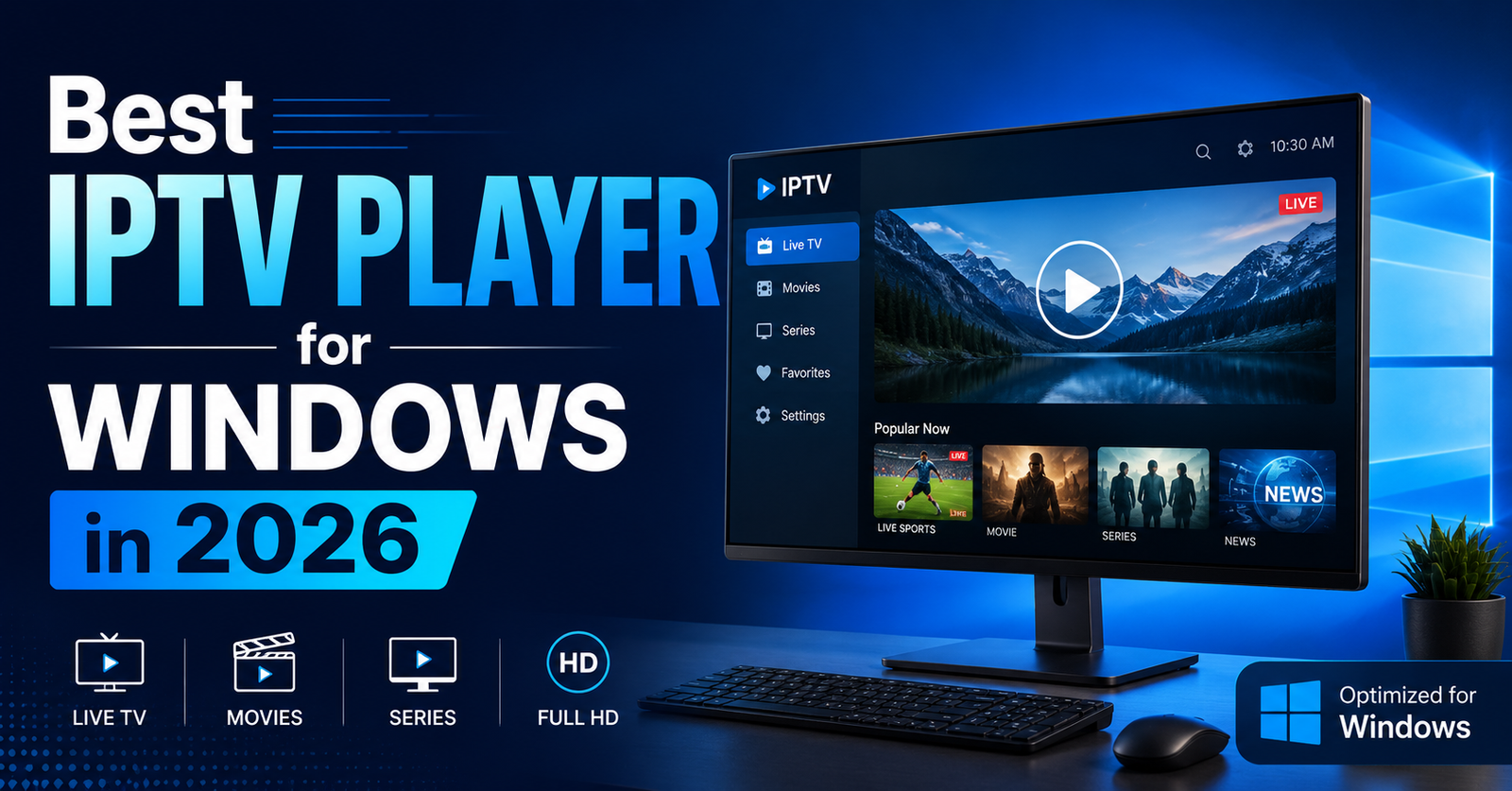
The best IPTV player for Windows in 2026 is a dedicated app such as IPTV Smarters Pro, TiviMate (via emulator), or a browser based Xtream Codes player, chosen based on how many devices you manage, whether you need EPG support, and how stable your connection is during peak hours. There is no single universal answer because a subscriber watching on one laptop has different needs than a reseller checking ten client lines at once.
That said, most people asking this question just want their channels to load fast, their guide to show up correctly, and their stream to survive the 7pm to 10pm rush without freezing. This guide walks through what actually separates a good IPTV player for Windows from a frustrating one, how to set it up properly, and what to check before you commit to any single app.
What Makes the Best IPTV Player for Windows in 2026
A good IPTV player for Windows needs to handle three things well: playlist loading, EPG (electronic programme guide) parsing, and stream stability under load. Plenty of apps can play an M3U link. Fewer can do it without freezing your guide data or crashing when you switch channels quickly.
Windows itself doesn’t ship with a built in IPTV player, so you’re choosing from third party software. That means compatibility with your specific playlist format matters more than it would on a purpose built streaming device. Some players handle Xtream Codes API logins cleanly. Others only accept a raw M3U URL, which can be clunky if your panel updates the playlist link periodically.
Pro Tip: Before installing any player, confirm whether your panel provides an Xtream Codes login (server URL, username, password) or an M3U link. This single detail decides which apps will work smoothly for you.
Top Features to Look for in an IPTV Player for Windows
The best IPTV player for Windows should support both playlist formats mentioned above, since panels vary in how they deliver access. Beyond that, look for a few specific things.
EPG support matters if you like planning what to watch. Without it, you’re guessing what’s currently airing on each channel. Catch up or timeshift support is useful if your panel includes it, letting you rewind live channels a short window back. Multi screen or picture in picture display helps if you’re monitoring several lines at once, which IPTV resellers do constantly when checking client feeds. Parental controls are worth checking too if the Windows machine is shared with family members.
Buffering resilience is the feature people notice most and think about least when picking an app. A player with a generous buffer setting can smooth over small network hiccups that would otherwise cause visible stutter. This setting is often buried in advanced options, so it’s worth checking before assuming an app performs badly.
VLC vs Dedicated IPTV Apps: Which Wins on Windows
VLC Media Player is the free, familiar option most people already have installed. It plays M3U playlists directly and requires no account setup. The tradeoff is that VLC has no EPG support and no dedicated IPTV interface, so you’re navigating a raw channel list with no programme information.
| Feature | VLC Media Player | Dedicated IPTV App |
|---|---|---|
| EPG guide | Not supported | Usually included |
| Setup difficulty | Very simple | Moderate |
| Catch up support | No | Depends on panel |
| Multi screen view | No | Often available |
For casual use or quick testing of a new line, VLC is genuinely fine. For daily viewing with a proper guide and channel categories, a dedicated app is worth the extra five minutes of setup.
Best IPTV Player for Windows Options Worth Trying
IPTV Smarters Pro is one of the more widely used dedicated apps, with a Windows version that supports both M3U and Xtream Codes logins, along with EPG display. TiviMate is popular on Android but doesn’t have an official Windows release, so Windows users typically run it through an Android emulator like BlueStacks, which adds a layer of setup but gives you the same interface many Android box users already know.
GSE Smart IPTV also runs on Windows through emulation and includes EPG support plus multi screen viewing. Perfect Player is a lighter option built specifically for IPTV playback rather than general media, and tends to run efficiently even on older laptops.
If you’re setting up a IPTV reseller panel for the first time and testing which player works best for your subscribers, it’s worth trying two or three apps side by side on the same line before recommending one to your customers.
How to Set Up the Best IPTV Player for Windows With Your Panel
Setting up any IPTV player for Windows follows a similar pattern regardless of which app you choose. First, install the player from its official source, never a random third party download link. Second, gather your login details from your panel, either the M3U URL or the Xtream Codes server address, username, and password. Third, enter these into the app’s “add playlist” or “add user” screen. Fourth, wait for the channel list and EPG to populate, which can take anywhere from a few seconds to a couple of minutes depending on how large the channel bouquet is.
Once loaded, test a handful of channels across different categories, sports, news, and entertainment, to confirm the stream loads and holds steady. If a channel freezes on first load but plays fine on a retry, that’s usually a server side handoff delay rather than a fault with the player itself.
Pro Tip: If channels take longer than 15 seconds to load consistently, try switching from a wireless connection to a wired ethernet connection on your Windows machine before troubleshooting anything else.
Common Buffering and Performance Issues on Windows
Buffering on Windows is rarely about the player itself. It’s almost always the network path between your machine and the server. Peak hours, typically evenings, put more load on shared infrastructure, and that’s when even the best IPTV player for Windows will show its limits if the underlying connection is stretched thin.
Our detailed breakdown on IPTV without buffering issues covers this in more depth, including how connection limits, server load balancing, and local Wi-Fi congestion all interact. Worth reading if buffering is a recurring problem rather than an occasional one.
Windows firewall and antivirus software can also interfere with streaming apps, particularly if the app needs to open specific ports for smoother playback. If a player performs worse right after a Windows update, check whether your firewall settings reset during the update, since this happens more often than people expect.
Best IPTV Player for Windows for Resellers Managing Multiple Lines
Resellers have different priorities than a single subscriber. You’re not just watching, you’re checking whether client lines are working, testing new trial accounts, and sometimes demonstrating the service to a prospective customer. For this, a player that supports quick playlist switching without a full re-login is genuinely useful, since it saves time when you’re testing five or six lines back to back.
If you’re running a IPTV reseller panel and testing performance across your own client base, our guide on instant channel loading explains what actually affects how fast a channel switches, which is directly relevant when you’re comparing players for speed rather than just features.
Best IPTV Player for Windows and Stream Quality
Stream quality perception often comes down to the player’s rendering settings rather than the source stream itself. Hardware acceleration, when enabled, offloads video decoding to your graphics card instead of the CPU, which noticeably reduces stutter on older Windows machines. Most dedicated IPTV apps have this as a toggle in settings, sometimes labelled “hardware decoding” or “GPU acceleration”.
If you want genuinely sharp playback without the guesswork, our page on crystal clear IPTV streaming goes through the settings and connection factors that make the biggest visible difference, separate from which specific app you’re using.
A Note on Using IPTV Responsibly
It’s worth being upfront here. IPTV players themselves are just software, they play whatever stream you point them at. What matters is where that stream comes from and whether it’s properly licensed. Reputable panels source their content through proper agreements, and resellers should be comfortable asking their supplier direct questions about this before building a customer base around it. For anything you genuinely want to watch through official channels, going directly through the broadcaster’s own app or website remains the safest and clearest route.
Frequently Asked Questions
Is there an official IPTV app made by Windows itself?
No. Windows does not include a built in IPTV player. You need to install third party software such as VLC or a dedicated IPTV app to play M3U or Xtream Codes streams.
Does the best IPTV player for Windows need a powerful computer?
Not particularly. Most dedicated IPTV apps run comfortably on a standard laptop from the last several years. Hardware acceleration settings help more than raw processing power in most cases.
Can I use the same IPTV player for Windows and Android?
Some apps, like IPTV Smarters Pro, offer both Windows and Android versions with a similar interface, which makes switching between devices easier if you use more than one.
Why does my IPTV player for Windows show no EPG data?
This usually means the EPG source URL wasn’t entered correctly, or your panel’s guide data hasn’t loaded yet. Check your panel settings for a separate EPG link if the main playlist doesn’t include one automatically.
Is VLC good enough as an IPTV player for Windows?
For quick testing or casual viewing, yes. For daily use with a full channel guide and organised categories, a dedicated app will feel considerably smoother.
Conclusion
There isn’t one single best IPTV player for Windows that fits everyone, but there is a clear best fit depending on what you actually need. If you want simplicity, VLC gets you playing within seconds. If you want a proper guide, organised categories, and a smoother daily viewing experience, a dedicated app like IPTV Smarters Pro or GSE Smart IPTV is worth the extra setup time. Whatever you choose, the player is only half the equation. A stable panel behind it, sensible connection limits, and a wired connection during peak hours will do more for your viewing experience than switching apps ever will.
Checklists
Subscriber Checklist
- Confirm whether your panel gives you an M3U link or Xtream Codes login before choosing an app
- Test at least two players before settling on one for daily use
- Use a wired connection during evening peak hours if buffering is frequent
- Enable hardware acceleration in your player’s settings if available
Reseller Checklist
- Test the same client line across two or three different players to compare performance
- Keep a shortlist of recommended Windows players to share with new customers
- Document common setup issues so support responses are faster
- Check connection limits per line before troubleshooting a “slow” complaint
Sub-Reseller Checklist
- Ask your upstream reseller which players they recommend for Windows before onboarding customers
- Keep setup instructions simple, most customer confusion comes from playlist entry, not the player itself
- Flag recurring buffering complaints to your reseller rather than assuming it’s device specific
- Confirm EPG source links separately if your panel provides them apart from the main playlist