

Best IPTV Streaming on Apple TV: Full 2026 Setup Guide
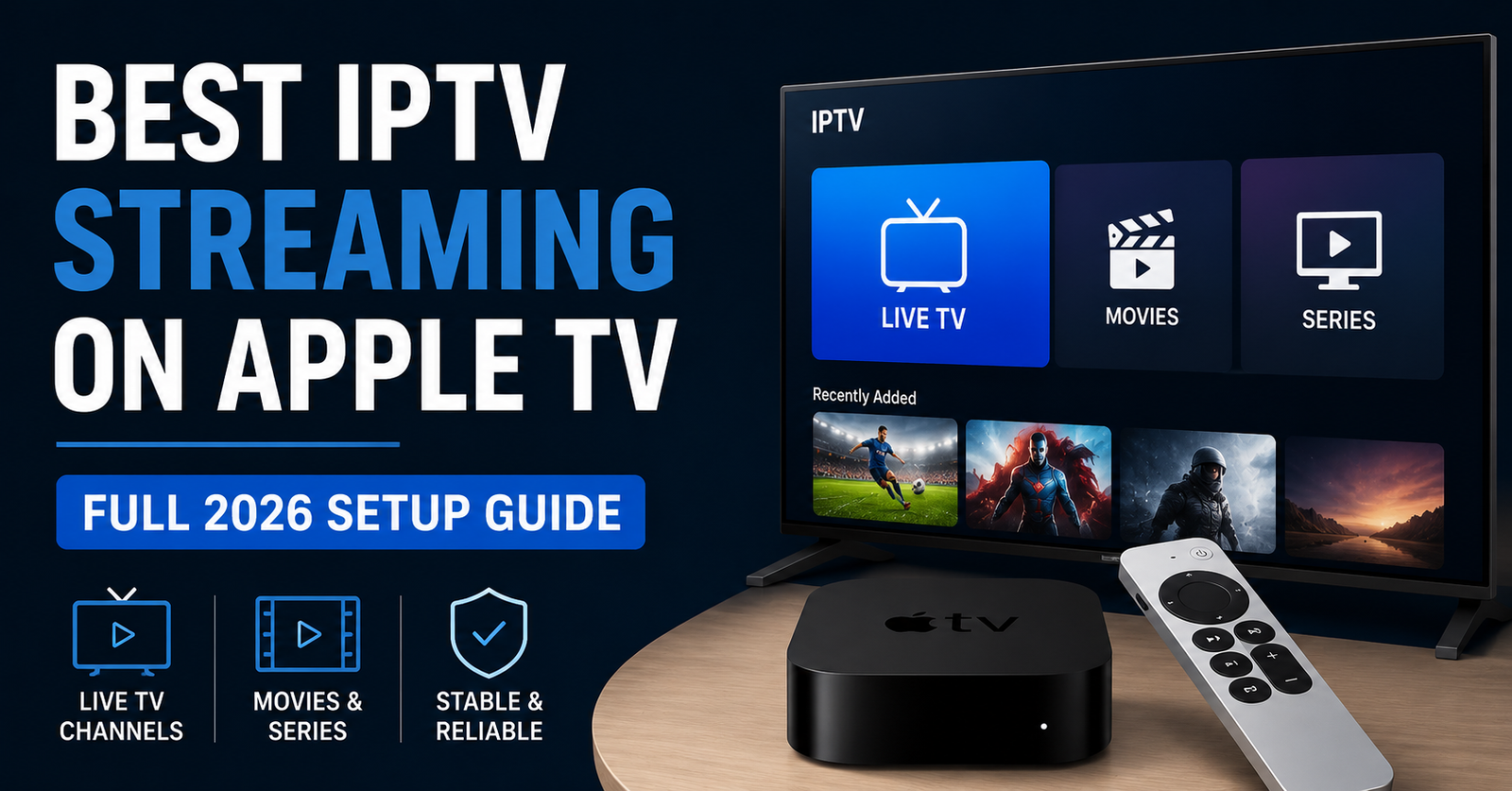
IPTV Streaming on Apple TV: What Actually Works in 2026
Most Apple TV users set up IPTV streaming in under ten minutes and immediately wonder why nobody told them sooner. A smaller group spends three days troubleshooting buffering, crashes, and grey screens — not because IPTV streaming on Apple TV is difficult, but because they chose the wrong app or provider combination from the start.
IPTV streaming on Apple TV is entirely possible and, when configured correctly, delivers one of the cleanest viewing experiences available on any streaming device. The tvOS environment is stable, the hardware is genuinely powerful, and the network stack handles HLS delivery efficiently. The problems almost always trace back to three things: the wrong app, a provider running cheap infrastructure, or a home network that cannot sustain consistent throughput.
This guide covers what actually works — including the specific failure points that most setup guides conveniently skip.
Why Apple TV Handles IPTV Streaming Differently From Other Devices
Apple TV runs tvOS, which is a closed ecosystem compared to Android-based streaming boxes. That single fact shapes everything about how IPTV streaming on Apple TV is configured and maintained.
Unlike Fire TV or Android boxes, you cannot sideload applications on Apple TV. Every app must come from the App Store, which means the informal IPTV clients common on Android — the ones that accept any M3U playlist directly — are not available. This immediately narrows your options.
What tvOS does exceptionally well is network management. Apple TV hardware prioritises buffer pre-loading and maintains stable HLS stream connections better than most budget Android devices. When the infrastructure behind your UK IPTV reseller service is solid, Apple TV streaming performance is noticeably cleaner.
The trade-off is flexibility. Android device users have more client options. Apple TV users have fewer but generally more polished ones.
The App Layer: What You Actually Need for IPTV Streaming on Apple TV
Because sideloading is not possible, IPTV streaming on Apple TV depends entirely on what is currently available in the App Store. The landscape in 2026 centres on a handful of players.
IPTV Smarters Pro remains the most widely used option. It accepts M3U URLs, supports Xtream Codes API connections, handles multi-screen layouts, and manages EPG data reasonably well. Performance depends heavily on the server delivering the streams rather than the app itself.
GSE Smart IPTV offers a solid alternative, particularly for users managing multiple playlists or needing more granular EPG control. The interface is less polished but the playback engine handles adaptive bitrate streams reliably.
Flex IPTV and Infuse cover more niche use cases — Infuse works well for users blending IPTV streams with personal media libraries, though its IPTV support is more limited.
Pro Tip: Avoid apps that have not received an update in over 12 months. tvOS updates frequently break compatibility with older app builds, and abandoned IPTV apps on Apple TV are a consistent source of playback failures.
How Connection Method Affects IPTV Streaming on Apple TV
The connection method you choose between M3U and Xtream Codes API matters more on Apple TV than on Android devices, primarily because of how tvOS handles connection timeouts.
M3U playlist loading pulls the entire channel list on startup. Large playlists — providers with 20,000 or 30,000 channels — cause noticeable lag during initial load and occasional crashes on older Apple TV hardware. If your provider gives you an M3U with everything bundled, request a filtered playlist covering only the regions and categories you actually watch.
Xtream Codes API connections load channel data on demand rather than all at once. On Apple TV this generally produces faster startup times and more stable session management. If your provider supports Xtream Codes login credentials, use them rather than a raw M3U link.
| Connection Method | Startup Speed | Stability | EPG Reliability |
|---|---|---|---|
| M3U (Large Playlist) | Slow | Moderate | Variable |
| M3U (Filtered Playlist) | Faster | Good | Good |
| Xtream Codes API | Fast | Strong | Strong |
| Direct Stream URL | Fastest | Varies by source | None |
What Provider Infrastructure Does to Your Apple TV Experience
Here is where most setup guides stop being useful. The app and the connection method matter, but neither controls what actually happens to the stream once it leaves the provider’s servers.
IPTV streaming on Apple TV exposes infrastructure weaknesses more visibly than many other devices, because tvOS does not aggressively mask buffering the way some Android apps do. When a stream stutters on Apple TV, it stutters clearly.
The core infrastructure factors:
CDN routing determines how close the stream delivery point is to your location. Providers running content from a single origin server with no edge delivery create longer round-trip times. During peak hours — Champions League kickoffs, Premier League 3pm windows, Sunday NFL slates — the distance between you and the origin server becomes the bottleneck.
Load balancing determines whether traffic spikes are absorbed or felt. A provider distributing load across multiple stream servers handles 50,000 simultaneous connections differently from one running everything through a single node.
HLS segment delivery is what Apple TV actually receives. IPTV streaming on Apple TV works on HLS (HTTP Live Streaming) by default. Short HLS segments delivered consistently produce smooth playback. Delayed or dropped segments produce the freeze-buffer-recover cycle that drives viewers to raise support tickets.
Pro Tip: If your stream is perfect between 9am and 5pm but degrades during prime time sports, the problem is almost certainly provider-side load balancing rather than anything in your home setup.
Network Configuration That Actually Makes a Difference
Before assuming the provider is at fault, verify your home network is not introducing problems.
IPTV streaming on Apple TV benefits from a few specific configurations that are not obvious to casual home network users.
Wired connection over WiFi wherever possible. Apple TV supports Ethernet via an adapter. A consistent 20Mbps wired connection outperforms a 200Mbps WiFi connection for IPTV streaming, because wireless interference creates micro-interruptions that HLS buffers cannot always absorb cleanly.
DNS server selection. Using a provider’s default DNS introduces unpredictable lookup latency. Switching Apple TV to use a fast public DNS — or the DNS provided by a privacy-focused resolver — consistently reduces the time taken to resolve stream URLs before playback begins.
QoS settings on your router. If multiple devices share your network during sports events, QoS (Quality of Service) rules that prioritise Apple TV traffic prevent other devices from stealing bandwidth at critical moments.
MTU configuration. This is rarely discussed but matters on some ISP connections. A mismatch between your router’s MTU setting and your ISP’s expected value causes fragmented packets that disrupt HLS streams. On consumer routers this is usually auto-negotiated correctly, but if you are experiencing consistent issues on an otherwise stable network, it is worth checking.
ISP Throttling and IPTV Streaming on Apple TV
ISP interference with IPTV streaming on Apple TV has intensified across all major English-speaking markets. UK, Australian, Canadian, and US ISPs are all employing increasingly sophisticated traffic analysis to identify and throttle or block IPTV stream traffic.
The techniques have moved beyond simple port blocking. Traffic fingerprinting now identifies HLS stream patterns based on connection behaviour, packet timing, and payload signatures rather than destination IP addresses alone. This means IP rotation on the provider side no longer provides full protection against throttling.
From experience reviewing infrastructure configurations: providers running streams exclusively over standard HTTP port 80 and HTTPS port 443 without any additional obfuscation face higher throttling rates from UK ISPs than those deploying traffic engineering techniques to normalise stream traffic patterns.
For users in heavily throttled markets, the practical options are:
- Use a provider that actively manages ISP interference through traffic engineering
- Route IPTV streaming on Apple TV through a VPN configured at the router level (not on the Apple TV itself, since tvOS does not support VPN apps natively)
- Contact your ISP and test whether the issue is throttling versus genuine connection instability
The router-level VPN approach is the cleanest solution for Apple TV specifically, because it protects the stream without requiring any configuration inside tvOS.
Sports Events and Why IPTV Streaming on Apple TV Fails at Kickoff
This is the most consistently reported failure pattern. IPTV streaming on Apple TV works perfectly during the week, fails at 3pm on a Saturday, and recovers within 30 minutes.
The cause is not mysterious. Sports event traffic spikes are the single largest stress test any UK IPTV reseller infrastructure faces. A provider serving 10,000 users on a normal afternoon might see 60,000 or 70,000 simultaneous stream requests during a major fixture.
Providers who have invested in horizontal scaling — spinning up additional stream capacity automatically during peak demand periods — absorb this without subscriber-visible failures. Providers running fixed-capacity infrastructure do not.
We have reviewed the infrastructure of multiple providers over the years. The consistent finding is that the majority of sports-event failures trace back to two points: the transcoding layer becoming a bottleneck when it was provisioned for average load rather than peak load, and CDN edge capacity that was not pre-warmed before a major event.
Pro Tip: Before subscribing to any IPTV service for sports streaming, ask specifically how they handle major event traffic. Vague answers about “multiple servers” without detail on auto-scaling or CDN pre-warming are a signal to investigate further.
For more detailed guidance on evaluating providers for sports streaming stability, the team at britishreseller.com publish regular infrastructure and provider assessments worth reviewing.
EPG Configuration for IPTV Streaming on Apple TV
Electronic Programme Guide setup is consistently underestimated during initial configuration. A missing or broken EPG does not prevent IPTV streaming on Apple TV from working, but it makes the service significantly less usable for non-technical household members.
Most IPTV apps on tvOS accept EPG data via XMLTV URL. The key points:
EPG update frequency matters. An EPG that updates once per 24 hours will show incorrect or missing programme information during day-of schedule changes, which are extremely common for live sports.
Channel ID mapping failures are the most common EPG problem after initial setup. The channel IDs in your provider’s M3U file must match the channel IDs in the EPG source. Mismatches produce blank guide data on specific channels while others show correctly. The fix is either requesting a corrected playlist from your provider or using an app that allows manual EPG mapping.
Time zone configuration inside the app must match your local time zone. An EPG displaying programme times in UTC for a UK viewer shows guide data offset by one or two hours depending on the season.
What Long-Term IPTV Streaming on Apple TV Reliability Actually Requires
Short-term setup is straightforward. Long-term reliability requires attention to things most guides do not mention.
App updates on tvOS can break IPTV streaming configurations unexpectedly. After a major tvOS update, check your app settings before assuming a playback failure is provider-side.
M3U playlist expiry is common among providers using token-based playlist authentication. Playlists that worked perfectly for months will suddenly stop loading because the authentication token embedded in the URL has expired. Providers should either issue non-expiring playlist URLs or give clear notification before expiry.
Provider infrastructure migrations happen without warning. A provider that was stable for months may move stream infrastructure to new IP ranges, which can trigger unexpected DNS lookup failures or ISP-level blocks on the new addresses.
Checklist: Troubleshooting IPTV Streaming on Apple TV
- Verify the M3U URL or Xtream Codes credentials are current
- Test on a mobile data connection to isolate home network issues
- Check whether the issue affects all channels or specific ones
- Confirm the app has not received a broken update
- Test playback during off-peak hours to identify peak-load issues
- Check whether your router’s VPN is active and functioning correctly
FAQ: IPTV Streaming on Apple TV
Can I use IPTV streaming on Apple TV without a third-party app?
No. Apple TV does not have a native IPTV client. You need a compatible App Store application such as IPTV Smarters Pro or GSE Smart IPTV to connect to your provider. There is no way to load IPTV streams directly into the tvOS home screen without an intermediary app.
Why does IPTV streaming on Apple TV buffer during sports events but work fine normally?
This almost always indicates provider-side infrastructure running at or near capacity during peak demand. Sports events create simultaneous connection spikes that overwhelmed transcoding capacity or CDN edge limits cannot absorb. The fix is switching to a provider with genuine horizontal scaling and pre-warmed CDN capacity for major fixtures.
Does IPTV streaming on Apple TV require a VPN?
Not universally. In markets with active ISP throttling — particularly the UK, Australia, and Canada — a router-level VPN consistently improves stream stability. Since tvOS does not support VPN apps natively, the VPN must be configured on the router itself rather than on Apple TV directly.
What is the best app for IPTV streaming on Apple TV in 2026?
IPTV Smarters Pro and GSE Smart IPTV are the most reliable options currently available in the tvOS App Store. App Store availability changes, so verify current availability before subscribing to a service that recommends a specific client.
How many streams can I watch simultaneously using IPTV on Apple TV?
This depends entirely on your provider’s subscription terms, not on Apple TV hardware. Most standard subscriptions allow one or two simultaneous streams. Multi-room viewing requires either a multi-connection subscription or separate accounts on each device.
Why does my EPG show wrong times on Apple TV?
Time zone misconfiguration inside the IPTV app is the most common cause. Verify that the app’s time zone setting matches your local time zone rather than UTC. If the time zone is correct, the issue may be with the EPG provider delivering data in a non-standard format that the app is misinterpreting.
Can IPTV streaming on Apple TV be affected by my ISP without me knowing?
Yes. ISP throttling of IPTV traffic is increasingly difficult to detect because modern traffic shaping is selective and intermittent rather than a blanket slowdown. The clearest diagnostic test is comparing stream quality on your home broadband against mobile data on a completely different network. Consistent improvement on mobile data strongly indicates ISP interference on your home connection.
What should I check if IPTV streaming on Apple TV suddenly stops working completely?
Start with the basics: check your M3U URL or Xtream Codes credentials, verify the IPTV app has not received a problematic update, and confirm your internet connection is functioning normally. If all three check out, test a single stream URL directly in a browser on another device. If that stream also fails, the issue is provider-side rather than device or app related.
Success Checklist
Subscribers
- Confirm your provider supports Xtream Codes API (preferred over raw M3U on Apple TV)
- Request a filtered M3U playlist if your provider has a large channel catalogue
- Set DNS on Apple TV to a fast public resolver
- Connect via Ethernet adapter where possible
- Configure time zone correctly inside your IPTV app
- Test stream quality during off-peak hours before a major sports event
Resellers
- Verify your upstream provider uses CDN-based HLS delivery rather than direct origin streaming
- Test your service on Apple TV specifically before onboarding new subscribers
- Confirm your IPTV reseller panel shows real-time connection data so you can identify subscriber issues quickly
- Ensure the apps you recommend to subscribers are current in the tvOS App Store
- Prepare a standard troubleshooting guide for Apple TV subscribers covering app setup, DNS, and VPN configuration
- Monitor your reseller panel during major sports events and have an escalation path to your provider ready
Sub-Resellers
- Understand the difference between app-side and infrastructure-side failures before contacting your reseller panel owner
- Document Apple TV-specific issues separately from Android or browser-based reports
- Advise subscribers to test on off-peak hours before major events to establish a baseline
- Confirm your upstream reseller has a clear position on ISP throttling support for UK and Australian subscribers
Conclusion
IPTV streaming on Apple TV is a clean, reliable experience when the three components align: a capable app, a stable provider infrastructure, and a home network configured to support consistent throughput. When any one of those components fails, the result is the buffering and disconnection cycle that drives negative reviews and subscriber churn.
The closed tvOS ecosystem limits app flexibility but actually improves baseline playback stability compared to fragmented Android environments. The real variables are above the device level — in the CDN architecture, load balancing, ISP routing, and the provider’s ability to handle traffic spikes during major sports events.
Understanding where failures actually originate makes troubleshooting faster and provider selection more informed.
Closing Insight
The single most important decision in IPTV streaming on Apple TV is not which app you use — it is which provider you choose and whether their infrastructure is genuinely built for the demand peaks that matter most. A well-configured Apple TV with an underpowered provider will always underperform. The same device with infrastructure that handles scale correctly will deliver a viewing experience that matches or exceeds traditional broadcast quality. Choose the infrastructure first, then configure the device around it.